

To check whether a monthly return was filed and paid, find the filing acknowledgment and, if tax was due, the bank receipt. The línea de captura is the payment reference: it states the amount and deadline, but does not confirm that you paid.
Build a period index
For each month, keep a one-line index with the return type, filing date, acknowledgment, payment status and any supplementary return. This makes the SAT consultation usable as a control record and helps distinguish a missing document from an obligation that was never filed.
Check that the records relate to the same RFC, fiscal year, period and tax. A March return may have been filed and paid in April. A later amended return may also have changed the amount due.
Select the service by document
| Objective | SAT service | Data needed |
|---|---|---|
| Recover a return acknowledgment | Reprint acknowledgments | Return type and folio. |
| Check the record of returns and payments | Declaration and payment transactions | RFC, fiscal year, period and tax concept. |
| File or amend an individual return | Business, professional, rental and VAT returns for individuals | RFC, Password or e.firma. |
| File or amend a legal-entity return | Provisional or definitive payments for legal entities | RFC, Password or e.firma. |
| Request a formal certificate | Certificates of returns and payments | Requirements shown in the procedure. |
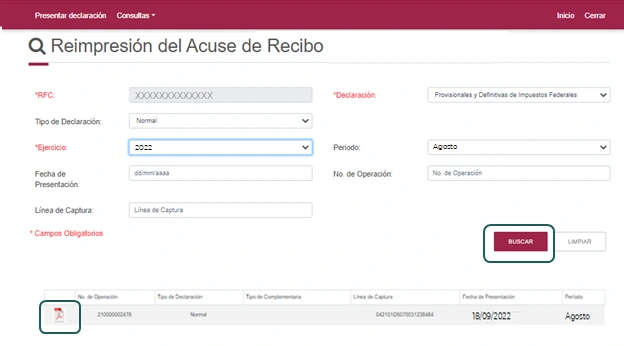
The acknowledgment reprint and transaction query accept Password or e.firma. SAT states that reprinting requires the return type and filing folio.
Information to collect

- taxpayer RFC;
- Password or valid e.firma;
- fiscal year and filing period;
- obligation, such as ISR, VAT, withholding or IEPS;
- normal or amended return type;
- folio or operation number, when available;
- payment reference and bank receipt when tax was due.
Do not use the payment date as the filing period. A bank payment made in April may settle a March obligation.
Check the filing step by step
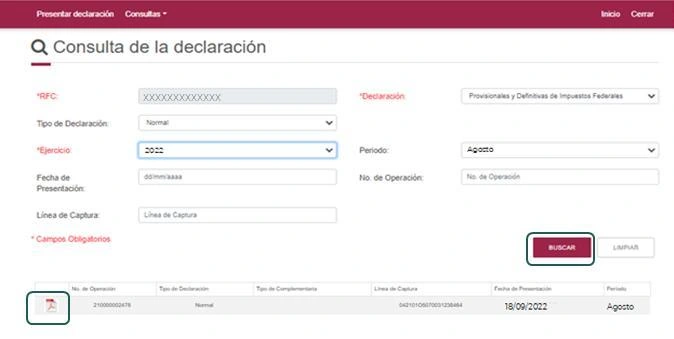
- Open the official service that produces the record you need.
- Sign in under the correct RFC.
- Select fiscal year, period, obligation and return type.
- Enter the folio when using the acknowledgment-reprint service.
- Check the RFC, filing date, operation number and tax concept.
- Download the acknowledgment or print the transaction result.
- Open the saved file before ending the session.
- If tax was due, match the acknowledgment to the payment reference and bank receipt.
The transaction query can show the operation number, SAT receipt number, filing date, concept, whether the record is a return or payment, its type, period and fiscal year.
What each record proves
| Record | What it proves | Fields to verify |
|---|---|---|
| Filing acknowledgment | SAT received the return. | RFC, folio, date, period, obligation and amount. |
| Payment reference | The reference, amount and validity period for payment. | Total, deadline and reference string. |
| Bank receipt | The authorized bank received payment. | Reference, operation number, date, payment key, amount and channel. |
| Transaction result | SAT's queryable record of returns and payments. | Order of normal returns, amendments and payments. |
| Bank statement | The account was charged. | Date and amount compared with the receipt. |
The acknowledgment does not prove payment. SAT lists the payment reference, operation number, payment date, payment key, amount and channel as required bank-receipt data.
Payment references and bank receipts

The *línea de captura* links a filed obligation to the amount due. Depending on the service and bank, it may be paid through the SAT bank link, online banking under the referenced-payment option or an authorized branch.
Check the reference's expiry date and the bank's payment hours. If it has expired, return to the service where you prepared the return and check how to generate a current reference for your case. The amount may change if inflation adjustment and surcharges apply.
After payment, compare:
- payment reference;
- amount declared;
- amount paid;
- payment date and operation number;
- payment key;
- charge on the bank statement.
Normal and amended returns
| Record | Meaning |
|---|---|
| Normal return | First filing of the obligation for the period. |
| Amended return | Later filing that modifies, cancels or adds an obligation under the selected amendment type. |
| Late return | Filing submitted after its deadline. |
| No tax due | Filing that did not generate a payment reference. |
| Tax due | Filing that requires the acknowledgment, payment reference and bank evidence. |
Order all records by date and preserve every acknowledgment. The final amount may come from a later amendment rather than the first normal return.
Record why the filing changed: omitted or canceled CFDI, withholding, collection, deduction, data-entry error or a change in the calculation.
General filing date
The general SAT pages for monthly provisional or final payments by individuals and legal entities state the 17th day of the following month. A federal decree adds business days according to the sixth numeric digit of the RFC:
| Sixth numeric digit | Additional time |
|---|---|
| 1 or 2 | One business day. |
| 3 or 4 | Two business days. |
| 5 or 6 | Three business days. |
| 7 or 8 | Four business days. |
| 9 or 0 | Five business days. |
Other obligations use different dates and periods. Confirm the regime, tax and current service page before setting a deadline.
Reconcile the filing
The SAT query shows what was filed. To test the calculation, compare it with:
- issued CFDI and cancellations;
- received CFDI supporting deductions or input VAT;
- payment complements and collection dates;
- withholding paid or received;
- bank statements and reconciliations;
- ISR, VAT, IEPS and withholding workpapers;
- all normal and amended returns for the period.
Review prefilled data against XML, bank records and accounting support before submitting a correction.
Common problems
| Problem | First review | Next action |
|---|---|---|
| Return is missing | RFC, fiscal year, period, obligation, service and folio. | Confirm whether it was submitted in the correct application. |
| Only the payment reference is available | Acknowledgment and transaction history. | Retrieve the filing evidence as well. |
| Payment is not shown | Reference, validity, date, amount, payment key and bank. | Assemble records before opening a clarification. |
| Amount changed | Sequence of normal and amended returns. | Compare acknowledgments and workpapers. |
| Obligation is absent | Tax-status certificate and active obligations. | Update the RFC only if the registered facts are wrong. |
| Compliance opinion shows an omission | Exact obligation, period and payment. | Review the tax-compliance opinion. |
| SAT sent a requirement | Notification date and response period. | Gather filings and payments before using the omitted-obligation clarification. |
A Tax Mailbox notification can start a legal period. Review the complete act, acknowledgment and applicable rule before responding.
Monthly evidence file
The following names are an internal control, not a SAT requirement:
| Folder | Content |
|---|---|
| `01-cfdi` | Issued, received, canceled XML and payment complements. |
| `02-banks` | Statements and reconciliations. |
| `03-calculation` | Tax workpapers and accounting review. |
| `04-sat` | Acknowledgments, references and query results. |
| `05-payment` | Bank receipts and confirmations. |
| `06-clarifications` | Requirements, responses and follow-up. |
Use the fiscal year, period, obligation and return type in file names. For example: `2026-03-VAT-normal-acknowledgment.pdf`.
When to ask your accountant for help
Request accounting or tax review when:
- a return believed to be filed cannot be found;
- SAT, CFDI and bank amounts differ;
- amended returns have no workpaper;
- a payment reference expired or payment cannot be located;
- the RFC shows obligations outside the registered activity;
- a refund, financing or tender depends on the result;
- a SAT letter, requirement or Tax Mailbox deadline exists;
- several periods are missing.
When asking for a correction, include the acknowledgment and identify the amount or period that does not match. If you cannot find the document, explain where you searched and which details you used. The accountant can then check whether the return, the payment or just your copy is missing.
Frequently asked questions
Where can I check a filed monthly return?
Use acknowledgment reprint when the folio is available. Use the transaction query to review the status and sequence of returns or payments.
Does the acknowledgment prove the tax was paid?
No. It confirms SAT received the return. When tax was due, also verify the payment reference and bank receipt.
Why is a return missing?
Common causes are an incorrect RFC, fiscal year, period, obligation or service. The return may also never have been submitted. A later amendment has its own folio.
Can a monthly return be corrected?
Yes, through the amendment type that applies to the case. Preserve the revised calculation, reason, acknowledgments and any additional payment.
What if a payment is not shown?
Compare the reference, bank receipt, date, amount, payment key and bank statement. Prepare that evidence before a clarification.
See the guide to the SAT tax-compliance opinion for a related omission.
Official sources
- SAT: reprint filed-return acknowledgments.
- SAT: declaration and payment transactions.
- SAT: individual business, professional, rental and VAT returns.
- SAT: provisional or definitive payments for legal entities.
- SAT: federal taxes payable with a payment reference.
- SAT: Tax Mailbox.
Official links to complete the task
Open official services from a new browser tab, confirm the taxpayer and period, and save the resulting acknowledgment or evidence with the case.